
KB15
Thank you for using DOIO products. The following tutorial will guide you on how to perform advanced settings on your keyboard. The documents required for the tutorial can be downloaded from the official
Keyboard default function description
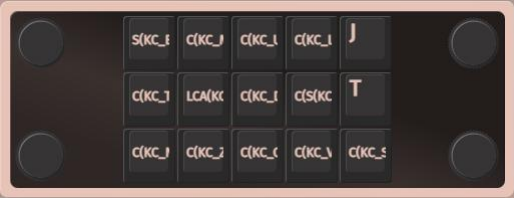
LAYER 1
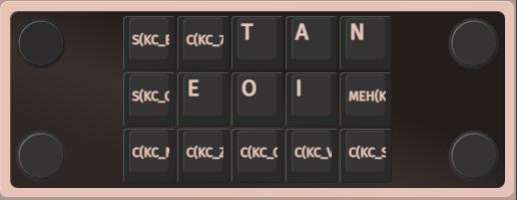
LAYER 2
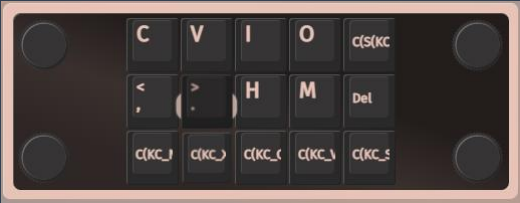
LAYER 3
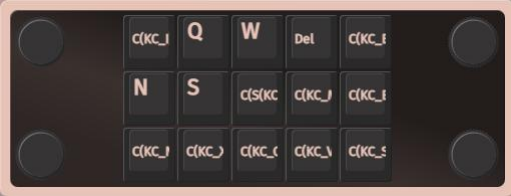
LAYER 4
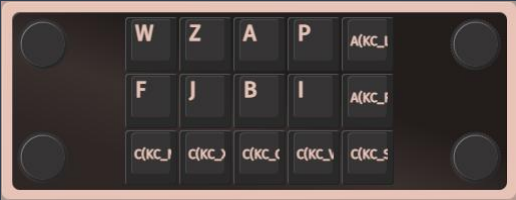
LAYER 5
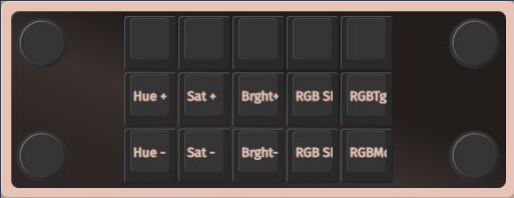
LAYER 10 (RGB Setting)
VIA Program
The VIA program can implement more advanced modification applications for the keyboard in addition to the initial key position function, such as modifying the key value of a certain key, setting key combinations, shortcuts, macro command programming, etc. The VIA program can be downloaded on its own from the official website and sales page.
The VIA program can implement more advanced modification applications for the keyboard in addition to the initial key position function, such as modifying the key value of a certain key, setting key combinations, shortcuts, macro command programming, etc. The VIA program can be downloaded on its own from the official website and sales page.
The VIA program can be accessed in two ways:
Enter https://usevia.app/ or click on the web version to use the online VIA settings page in the browser
Open VIA Program
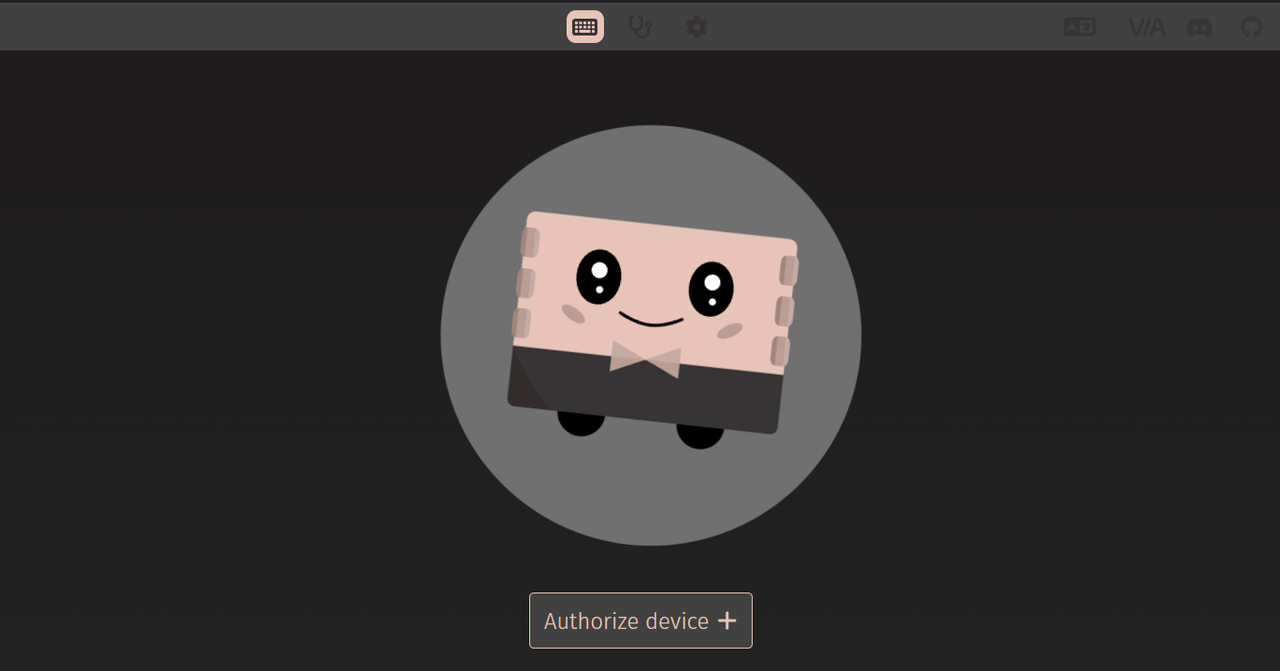
1.Web Interface: Open the VIA interface by visiting https://usevia.app/. Once in the main interface,
click on the
select the connected keyboard, and click "OK". The interface will then display the key layout diagram for the current keyboard. If the homepage is still displayed, please check if the USB cable of the keyboard is properly connected. After confirming that the USB cable is connected correctly, repeat the above steps.
2.Client End: Locate the downloaded VIA program compressed file and extract it. After extraction, launch the program. If the program starts successfully, the interface will display the key layout diagram for the current keyboard, indicating a successful connection. If the homepage is still displayed, please check if the USB cable of the keyboard is properly connected. After confirming that the USB cable is connected correctly, reopen the VIA software.
Load.json File
Download .json File:Click Here to download .json File
Load.json File:
Click the "DESIGN" icon at the top of the software and click the "Load" button at the bottom to load the corresponding keyboard JSON file. Alternatively, drag the .JSON file into the dotted box.
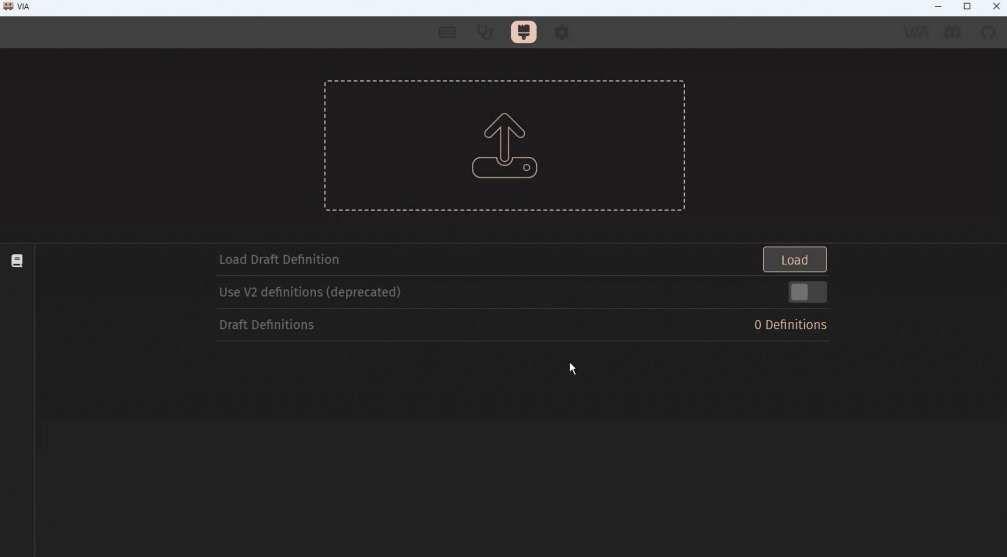
VIA Program Interface Description
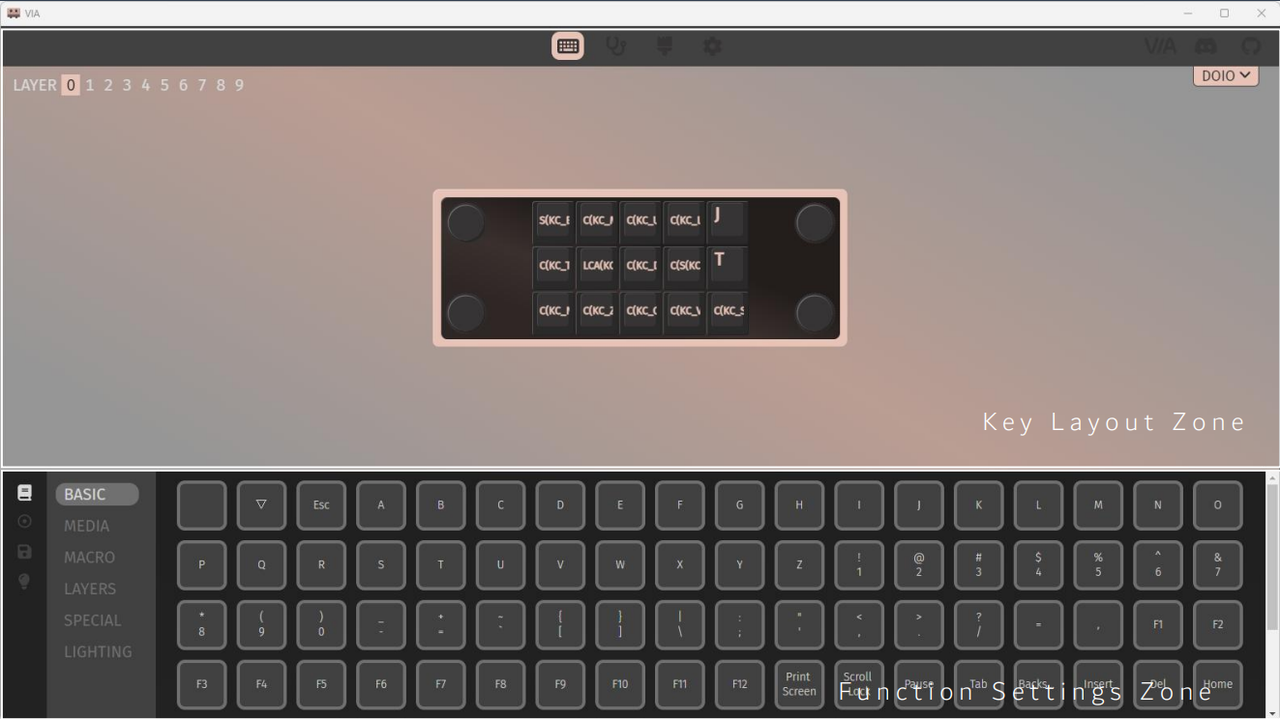
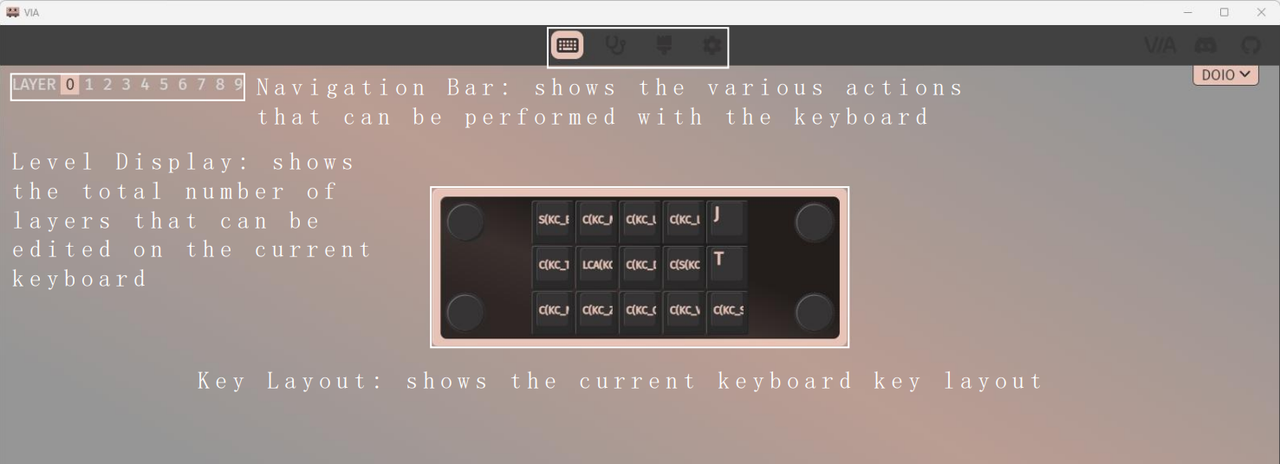
VIA Program Interface Description--Key Layout Zone
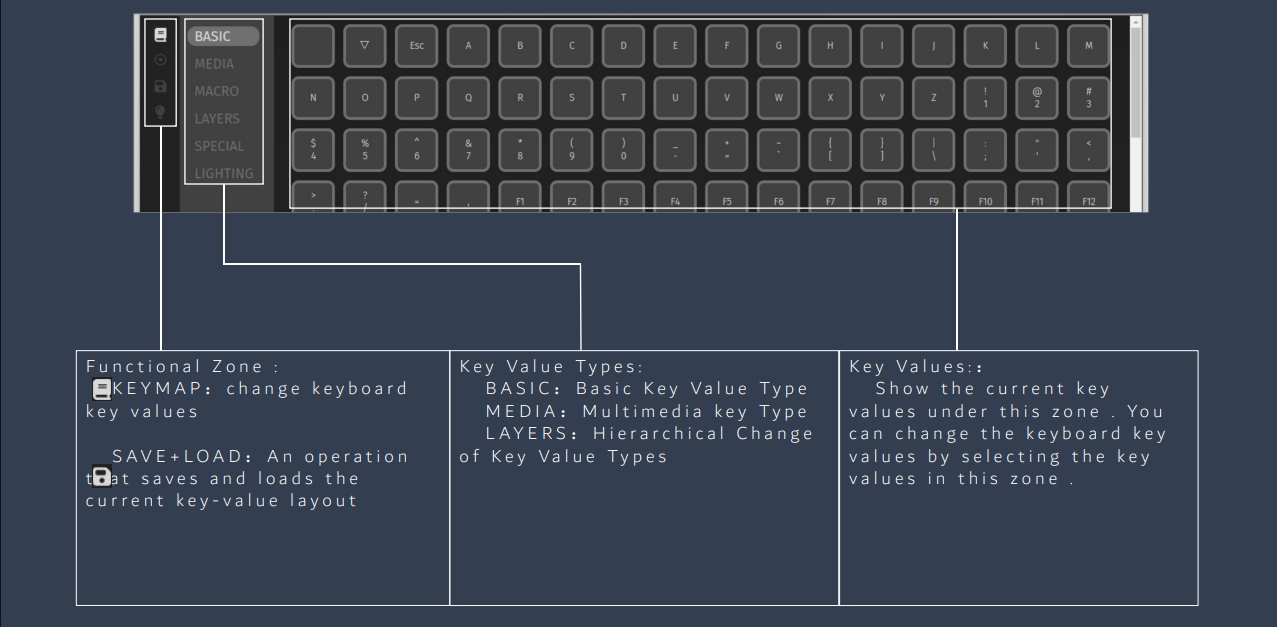
VIA Program Interface Description--Function Settings Zone
Basic Key Changes
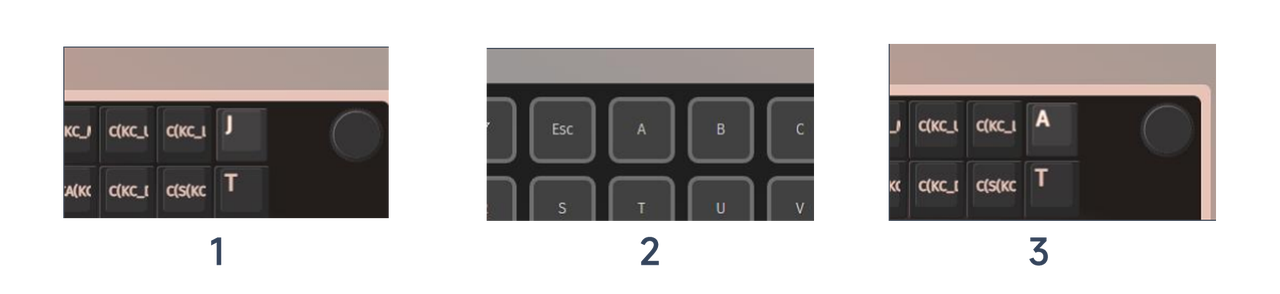
We can modify the key value of each key of the keyboard VIA, including the modification of the basic single key value, the modification of the multimedia key value, and the modification of the gamemode switch
Let's start with the simplest example:
Let's change the "J" key on the keyboard and try to change it to "A"
First, click the "J" key value in the upper key layout area, click on the left key value category in the lower function setting area, we find the "A" in the corresponding category, and click.
At this time, we will see that the "J" of the key layout diagram is programmed with "A";
there is no need to click save, and the key value takes effect immediately.
For other keys, repeat the above steps if the value is also changed to a single key.
Advanced key change
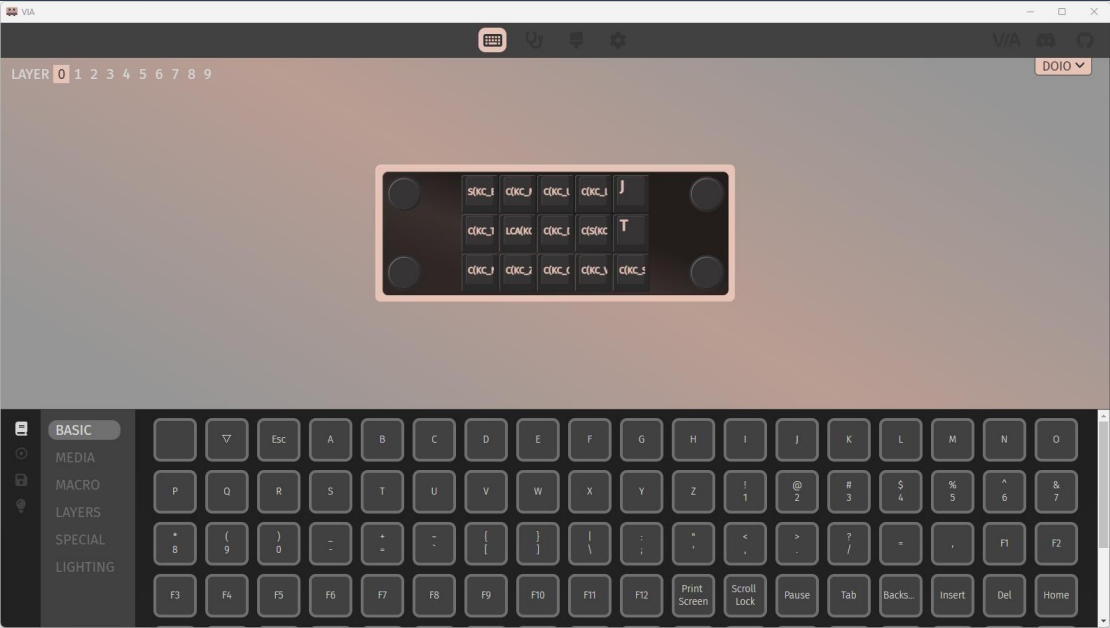
Advanced key change operation: first edit the advanced key change command in "MACROS". A total of 16 advanced key change commands can be edited.
Let's take M0 as an example to edit the advanced key change command. Enter the command with letters "K" and "D" — {KC_K,KC_D}; click Save after editing.
We followed the basic key change operation and changed the key in Muse Dash mode to M0 (taking the thumb key as an example).
In this way, the key change operation was completed. By pressing the thumb keys on both sides, the letters "K" and "D" could be triggered simultaneously.
How to use ANY
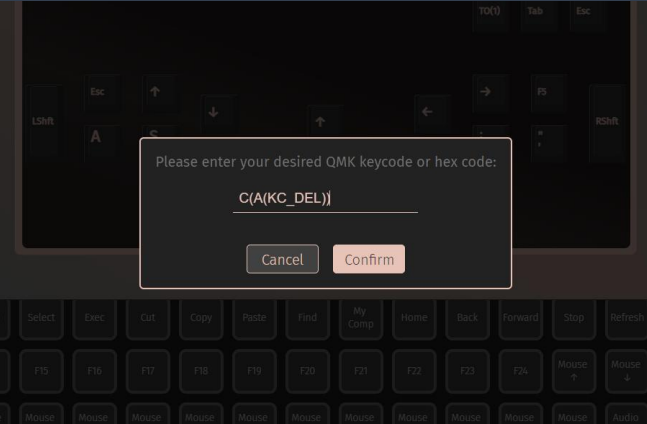
The ANY key can edit custom key combinations. You can apply key values to the keys and knobs.
First, click the key you want to modify, then click the SPECIAL key value type in the function settings zone below. Scroll down the key value list on the right to the bottom, click the Any key, and enter the corresponding ANY key value in the pop-up input box.
The ANY key can edit custom key combinations.You can apply key values to the keys and knobs.
First click the key you want to modify, then click the SPECIAL key value type in the function settings zone below, and select the key value list on the right scroll down to the bottom, click the Any key, and enter the corresponding ANY key value in the input box that pops up; then follow the ANY key:
Examples (Take Windows VIA for example):
How to write Ctrl+Alt+Del: C(A(KC_DEL))
"C" stands for "Ctrl" in this command
"A" stands for "ALT"; "KC_DEL" stands for "Delete" key
Under the Apple MAC system, the keyboard key values correspond to the Windows key values:
Option = Alt
Control = Ctrl
Command = Win = Meta key = Gui
Right Alt = AltGr = Option
*Note: ANY key can define the key value of only multiple function keys and one letter (number) key.
For example, CTRL+ALT+A The values of function keys and multiple letters (digits) cannot be set.
For example, ALT+A+O
Usage of the ANY Key"LT"
"LT" is a two-in-one key, hold down to switch to the specified layer, click to another key value
Note that clicking on a key value cannot be a modifier such as CTRL, ALT, GUI, or SHIFT
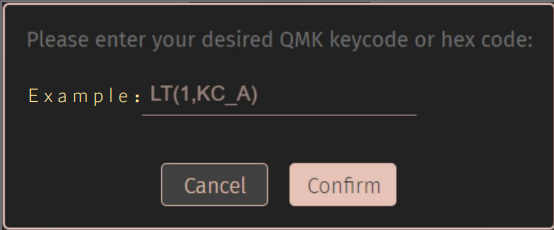
For example: LT(1,KC_A)
When you hold it down, it switches to layer 1, and when you click it, it's the letter A
Usage of the ANY Key"MT"
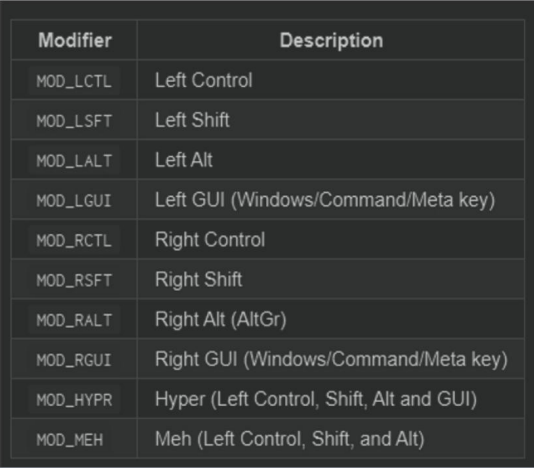
MT is a two-in-one key. Holding down is one key value, and clicking is another key value
Note that you can only hold down modifier keys such as CTRL, ALT, GUI, and SHIFT
If you need to change the key value to a backlight adjustment key, you can use basic remapping to change the key value to a backlight control type key, or you can use the ANY key to change it to one of the following key values:
SWITCH: RGB_TOG
MODE:RGB_RMOD
COLOR+:RGB_HUI
COLOR-:RGB_HUD
Saturation+:RGB_SAI
Saturation-:RGB_SAD
Bright+:RGB_VAI
Bright-:RGB_VAD
Speed+:RGB_SPI
Speed-:RGB_SPD
Save & Load
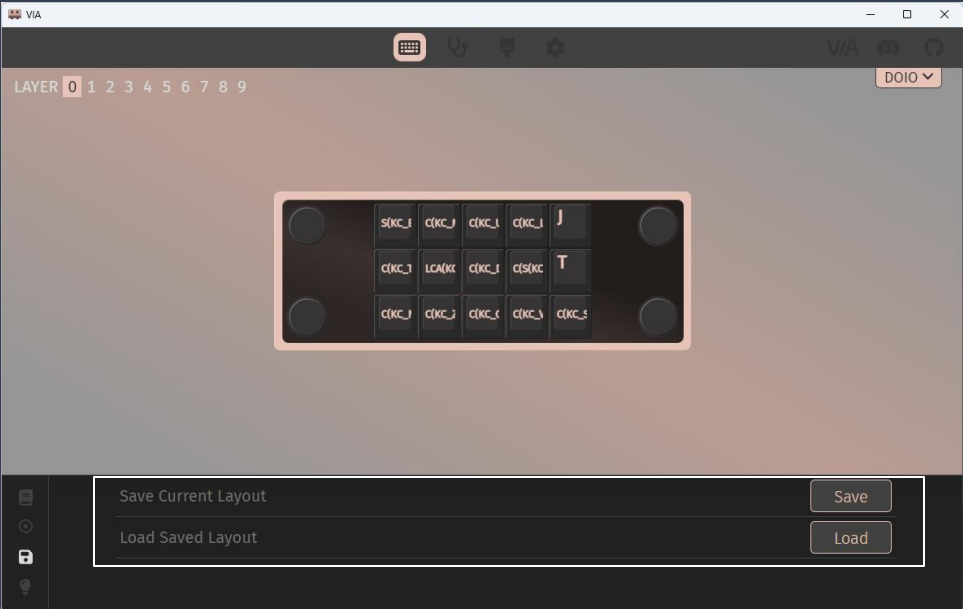
Save: You can save the key-value layout to back up the key-value layout, which is convenient to quickly restore the original key value later.
Load: You can quickly change or restore the current key value by loading the key-value layout.